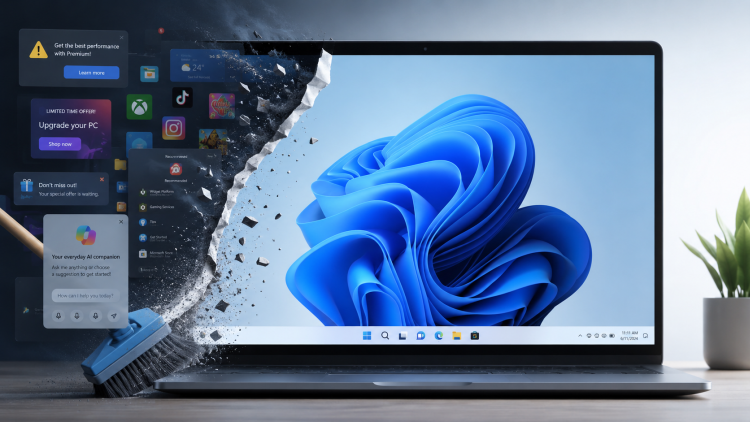
Recently, I’ve been hearing a lot of people complaining how bad Microsoft Windows 11 is.
Maybe it’s because I’ve been lurking in a lot more Linux forums recently. Or because of the social media and YouTube channels I subscribe to. Or maybe it really is a true reflection of what people are generally thinking about Windows 11, both computer geeks and ordinary users alike.
“It’s not that bad!” I thought to myself.
Until last week when I set up a new user account on my Windows 11 laptop and within minutes thought, “What on earth is this?!”
What people complain about Windows 11
It was then that I realised that for both my Windows desktop and laptop PCs, I’ve insulated myself against most of the Windows 11 quirks that many folks have been complaining about:
- Bad start menu (even after the latest redesign)
- Adverts
- Copilot, Microsoft’s built-in AI, promoted everywhere
- Lack of a full context menu in Windows Explorer
- Uninstall the bloat
I’ve tweaked things enough that most of Windows 11 now feels much like Windows 10. (Even if its deeper dialogs and settings feel like a ghetto, with designs going back to Windows 95 or earlier.)
For anyone who wants to reclaim a bit of sanity, here’s what I do when I set up a new Windows 11 install.
1. Replace the Windows 11 Start menu
One of the first things I do, after a new Windows 11 install is replace the Start menu.
I use Start 11 v2 from Stardock which costs £19 GBP for up to five active installs.
It gives me a ton of ways to customise the Start menu and taskbar, including:
- position the taskbar (left, right, top and bottom)
- customize the Start button
- pin documents and folders to the taskbar
- show seconds on the taskbar clock
But the biggest benefit for me are the Start menu styles on offer:
- Windows 7
- Modern (updated Windows 7)
- Windows 10
- Windows 11 (but with improvements)
- Windows App (updated Windows 11 style)
- Windows Pro (another updated Windows 11 style)
- Windows Launcher (minimal Windows 11 style)
I use the Windows 10 style which allows me to create tabbed groups of application categories, with everything else in an alphabetical list on the left.
There are also free alternatives to Start 11, but I have never used these.
2. Remove adverts from Windows 11
Annoyingly, Microsoft allows select adverts in various parts of the Windows interface, from third-party vendors and from their own services.
Some of these adverts and recommendations appear on the default Windows Start menu. So moving to a third-party Start menu immediate removes these.
But there are others.
Here’s a short video on how to switch off intrusive adverts and suggestions.
3. Remove Copilot from Windows 11
Microsoft has spent the last year deeply weaving its AI-powered assistant, Copilot, into the fabric of Windows 11.
Marketed as a tool to “boost productivity and streamline workflows”, it is designed to offer contextual help, automate routine tasks, and summarize data across your system and Microsoft 365 apps.
However, many users find it intrusive rather than helpful. Following significant community pushback, Microsoft has recently begun to scale back its “AI-first” approach, committing to removing Copilot from areas where it doesn’t provide clear value. If you want to reclaim your desktop, here is how to manage it.
3a. Remove Copilot from the Taskbar
The quickest way to tidy your interface is to hide the Copilot button from your taskbar.
- Right-click on an empty space on your Taskbar and select Taskbar settings.
- Under the Taskbar items section, locate Copilot and toggle the switch to Off.
3b. Disable Copilot globally
If you want to disable it at the system level, the method depends on your version of Windows.
Windows 11 Pro and higher
You can use the Group Policy Editor.
- Press
Win + R, typegpedit.msc, and hit Enter. - Navigate to
User Configuration > Administrative Templates > Windows Components > Windows Copilot. - Double-click Turn off Windows Copilot.
- Set it to Enabled.
Windows 11 Home users
If the Group Policy option is unavailable, you can use similar paths in the registry or, for a more thorough ‘clean sweep’, community-developed PowerShell scripts (such as RemoveWindowsAI) can be used to scrub AI services from your install. Google this for yourself.
3c. Turn off Copilot in Microsoft 365
Disabling Copilot in Windows doesn’t always automatically kill it inside you Microsoft 365 (Office) apps, if you use it. You will need to handle these individually:
Per-app settings
In Word, Excel, PowerPoint, or OneNote, go to File > Options > Copilot and uncheck the Enable Copilot box. You will need to repeat this for each app.
Privacy settings
If the checkbox isn’t available, go to File > Account > Account Privacy > Manage Settings. Under Connected experiences, uncheck Turn on experiences that analyse your content. Note that this may also disable other features like predictive text or suggested replies.
Note on Updates
Microsoft is actively iterating on these settings.
If you don’t see an option listed above, ensure your Windows 11 and Microsoft 365 apps are fully updated, as the ability to toggle these features has been a primary focus of recent patches.
4. Restore old right-click context menu in Windows 11
One thing that has made a huge difference for me is switching off the simplified right-click context menu in Windows Explorer and restoring the old, Windows 10 version.
This involves a registry change, so be careful.
- Press Win + R, type
regedit, and hit Enter to open the Registry Editor. - Navigate to the following path (you can paste this directly into the Registry Editor’s address bar):
HKEY_CURRENT_USER\Software\Classes\CLSID - Right-click on the
CLSIDfolder, select New > Key, and name the new key exactly{86ca1aa0-34aa-4e8b-a509-50c905bae2a2} - Right-click on the new key you just created, select New > Key, and name this sub-key exactly:
InprocServer32. - Click on the
InprocServer32folder. On the right side, you will see a(Default)value. Its data will say(value not set). - Double-click
(Default). Leave the Value data field completely empty, and click OK. (This forces the data value to switch from “not set” to blank, which overrides the new Windows 11 menu layout).
To apply the changes, you just need to restart Windows Explorer: Open Task Manager (Ctrl + Shift + Esc), look for Windows Explorer in the processes list, right-click it, and select Restart. Or restart your PC.
How to restore the default Windows 11 right-click context menu
To reverse this, simply remove the InprocServer32 key, then restart Windows Explorer again.
5. Uninstall the bloat
Finally, I uninstall the bloat.
Windows often ships with applications that companies have paid Microsoft or your hardware manufacturer to include.
It also comes with apps that you may never use – for example, I have never used whatever News app Windows 11 comes with. I rarely use the Weather app.
So, spend a few minutes scrolling through the list of apps (Settings > Apps > Installed apps) and remove what you don’t need or never use.
While this probably won’t impact your day to day activities, it means that Windows won’t have to download and install updates that you don’t need. And it removes the remote possibility that these become security risks later on too.
Conclusion
These simple changes have done wonders for my enjoyment of Windows 11. They remove some of the ‘noise’ and friction of using Windows 11 and allows me to focus on what I want to do.
What annoys you most about Windows 11?
